Turnista Frequently Asked Questions (ENG)
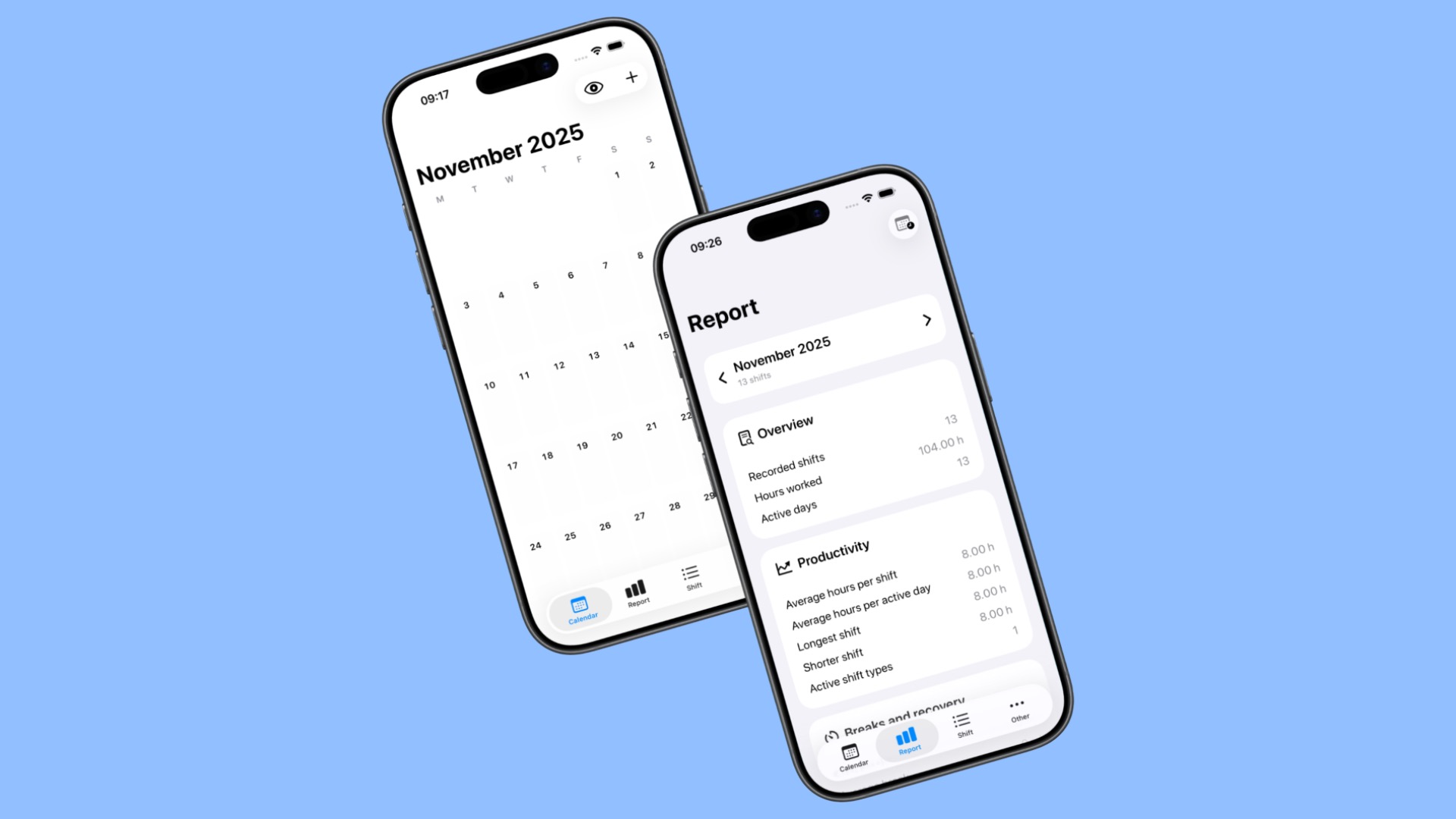
Welcome to Turnista!
We're here to help you get the most out of your shift tracking. Here are answers to some common questions.
Getting Started
How do I add a shift?
It's super easy! You have a few options:
- Tap the `+` button in the main calendar view to add a shift manually.
- Paint Mode: Tap the "Paintbrush" icon in the month view, select a Shift Type, and just tap the days you want to paint. It's the fastest way to fill your calendar!
- Quick Add: Long-press any day on the calendar to quickly assign a shift.
What are "Shift Types"
Think of Shift Types as templates for your shifts (e.g., "Morning", "Night", "Holiday"). You can set a default color, icon, and time for each type. Once created, you can reuse them to add shifts in seconds without typing the details every time.
How do I create a repeating shift pattern?
If you work a rotating schedule (like 4 days on, 2 days off), go to the Plus Menu (+) > Shift Rotations.
1. Tap Create Pattern.
2. Add your shift sequence (e.g., Morning, Afternoon, Night, Off).
3. Tap Generate Shifts, choose a start date, and let the app fill your calendar for months in advance!
Pro Features & Sync
How does iCloud Sync work?
If you are a Pro user, your data automatically syncs between your iPhone, Apple Watch, and other iOS devices logged into the same iCloud account. Just make sure you have iCloud Drive and Turnista enabled in your iPhone Settings under your Apple ID > iCloud.
Can I export my schedule?
Yes! Go to Settings > Export. You can export your shifts as:
- PDF: Great for printing or emailing.
- CSV: Perfect for Excel or Numbers.
- Calendar Sync: Sync your shifts directly to your iPhone's native Calendar app.
- Image: Create a beautiful snapshot of your schedule to share on WhatsApp or Instagram.
Why isn't my Widget updating?
Widgets usually update immediately, but sometimes iOS saves battery by delaying updates.
- Try opening the app and making a small change (like editing a note) to force a refresh.
- Ensure Background App Refresh is enabled for Turnista in your iPhone Settings.
I updated the app on my iPhone, but the Apple Watch version hasn't updated yet. What should I do?
Usually, the Apple Watch version updates automatically shortly after the iPhone version. However, the system may sometimes delay the transfer to save battery life.
To speed up the process, please ensure your Apple Watch is:
- Close to your iPhone.
- Connected to Wi-Fi.
- Placed on its charger (this prioritizes downloads/updates).
If it still doesn't update, you can force it: open the Watch app on your iPhone, scroll down to find our app, toggle OFF the "Show on Apple Watch" switch, and then toggle it back ON. This will immediately reinstall the latest version.
Troubleshooting
My "Night Shift" hours look wrong in the stats.
Night shifts can be tricky! We calculate night hours based on the specific timeframe you set in Settings > Shift Logic. Make sure your "Night Shift Begins" and "Ends" times match your actual schedule.
Note: Breaks taken during night hours are subtracted from the total night duration.
I bought Pro, but it's not showing up on my Watch.
Don't worry!
- Open the Turnista app on your iPhone.
- Wait a few seconds for the status to refresh.
- Open the app on your Watch. It should sync automatically.
- If it persists, try restarting both apps.
How do I delete all my data and start over?
If you need a clean slate, go to Settings, scroll down to the Data Management section, and select Delete all data. Warning: This cannot be undone!
Why can't I see the "Paint Mode" button?
Paint Mode is only available in the Month View. If you are looking at the Year or Agenda view, switch back to the Month view, and the paintbrush icon will appear in the menu.
Customization
Does the app support Dark Mode?
Yes, Turnista looks great in both Light and Dark modes. You can force a specific look in Settings > Appearance or let it match your system settings.
Still have questions? Feel free to contact me via the Contact section!